
Question:
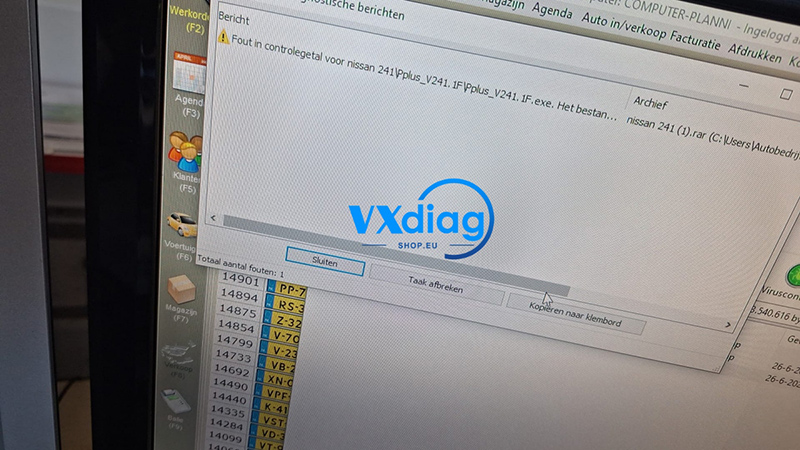
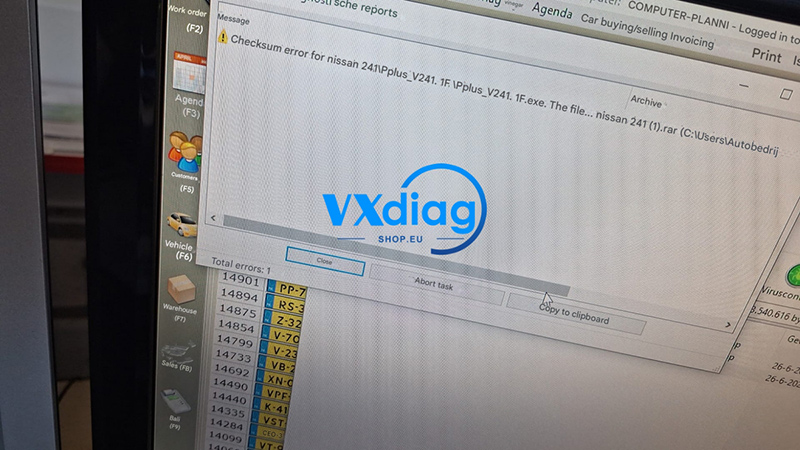
I am using the VXDIAG VCX SE for Renault, but I keep getting a “Checksum error for Nissan 241\Pplus V241.1F” message during setup or operation. What is causing this error, and how do I fix it?
Answer:
This error is caused by your computer’s antivirus software or Windows Defender. Because the antivirus was not turned off before installation, it mistakenly flagged and deleted or quarantined essential software installation files, resulting in missing files and a checksum error.
To resolve this issue, follow these steps:
Step 1: Disable Your Antivirus
Before doing anything else, completely turn off your antivirus software and temporarily disable Windows Defender Real-time protection on your laptop.
Step 2: Restore or Reinstall the Software
Because files are already missing from your current installation, you have two options to restore them:
-
Option A: Open your antivirus quarantine history, look for the deleted VXDIAG/Nissan files, and select “Restore and Add to Exclusions.”
-
Option B (Recommended): Completely uninstall the current software, keep your antivirus turned off, and run the installation package again to ensure all files install properly.
Step 3: Run the Software
Once reinstalled with the antivirus disabled, the software will have all its required components, and the checksum error will be resolved.
For more software downloads and official technical support, please visit www.vxdiagshop.eu.

