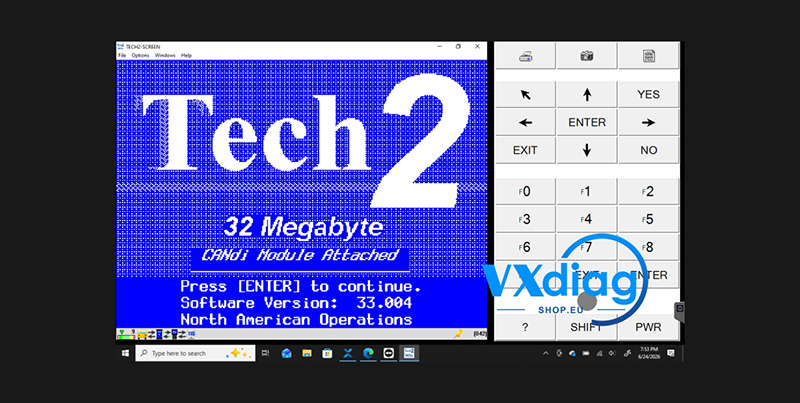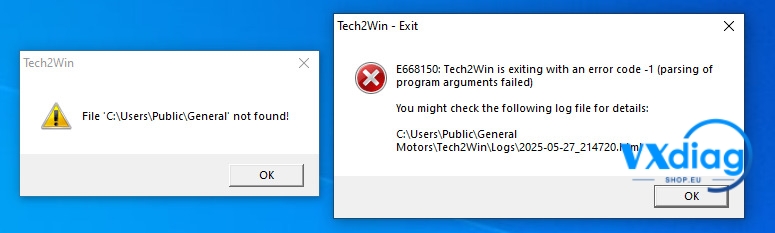
If your Vxdiag Nano for GM cannot launch GM GDS, don’t worry. This issue is usually caused by an outdated software patch.
Problem
Q: Vxdiag Nano for GM GDS does not open. How can I fix it?
After installing or updating the software, GM GDS may fail to start or close immediately when launched.
Solution
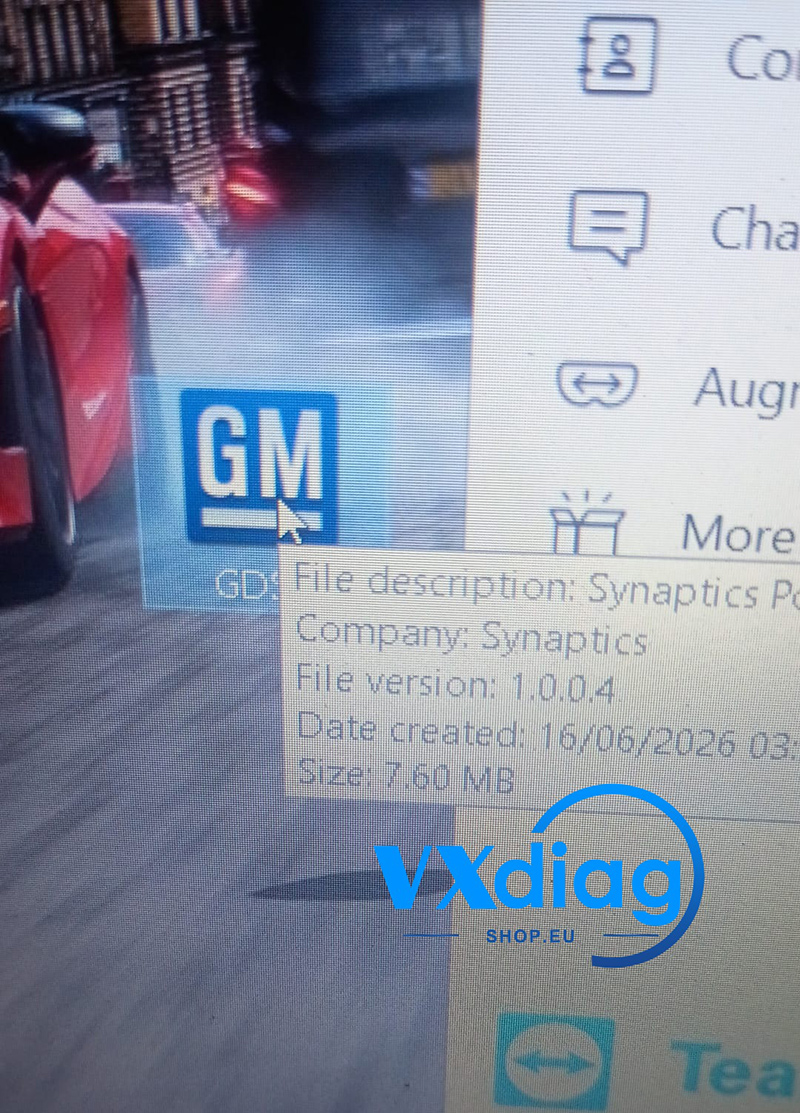
A: The previous patches are no longer compatible with the latest software. You need to install the newest patch.
Steps
1. Download the latest patch:
https://mega.nz/file/2Bs3nIiA#YD65-ZTw2dTfWO36AxdnVaOa7yMQgbuEDBFPYVAfe4s
2. Extract the downloaded file if it is compressed.
3. Follow the instructions included with the patch and complete the installation.
4. Restart GM GDS and check whether the software opens normally.
Conclusion
If Vxdiag Nano for GM GDS won’t open, the most common reason is that an old patch is being used. Installing the latest patch should resolve the issue and restore normal operation.
For more Vxdiag technical support, software updates, and repair guides, visit www.vxdiagshop.eu.